
Once your kid gets their first device, a distinctive parenting worry of multimedia usage creeps in. Somehow, you’ve been able to keep it under control until now. A handful of rules, a few rounds of chatting about internet safety, a good dose of common sense, that was pretty much it, right?
But then, suddenly, while casually poking your nose in their affairs, you catch a glimpse of your kid doing something on a totally unfamiliar app. A few days later, they mention a social media site that you’ve never even heard of before. And the screen time negotiations are incessant while their phone’s mysterious notifications keep them up at night, and the shocking thought hits you that your kid actually gets the digital world better than you do.

And that was definitely me half a year ago. I didn’t feel like finding a way to snoop on my kid. Turning into screen police at home was not something I wanted either. It was just for me to have some kind of insight about when to step in, when to raise a question, and when to let go.
So, I personally tried out multiple parental monitoring apps, and these three stuck with me: AirDroid Parental Control, Google Family Link, and Qustodio.
After devoting some time to each one, I found what parents are truly after:
- Ease of setup
- Screen-time controls
- App monitoring
- Safety features
- Notifications and alerts
- Day-to-day usability
- Overall peace of mind
Here’s what I learned.
What I Was Looking For in a Parental Control App
Before starting my tests, I created a simple list of criteria.
I was not looking for any military-level software. Instead, I wanted one that would enable me to become a better parent without causing too much tension between us.
The ideal app needed to provide:
- Easy installation and setup
- Clear screen-time management
- Visibility into app activity
- Safety alerts for potential risks
- Location tracking when needed
- Useful reports and insights
- Features that encourage conversation rather than control
Most importantly, it had to be functional in reality. If it were too difficult, parents would simply stop using it.
1. AirDroid Parental Control (The One I Kept)
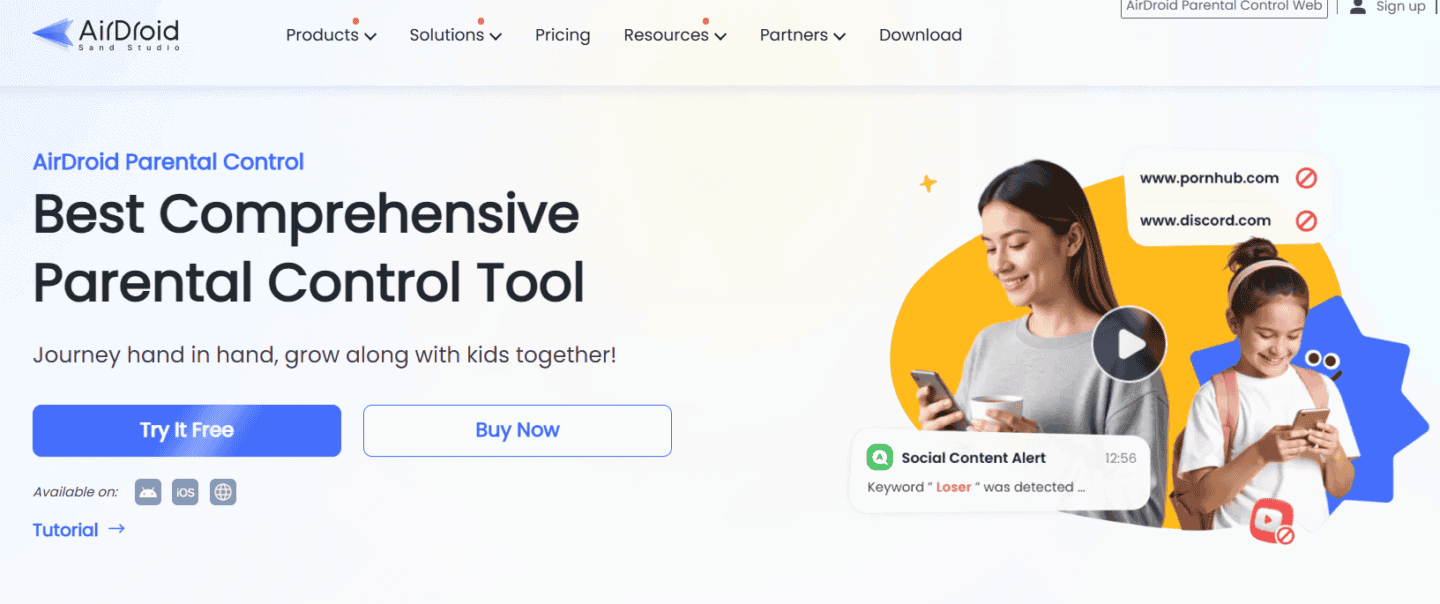
AirDroid was the tenth app that I tried after getting very disappointed several times, and frankly speaking, it really raised the bar.
The configuration took no more than a minute. I was able to link both devices and get a dashboard that immediately clicked. I did not need to go through any tutorials or navigate dozens of menus to figure out what was going on.
Everything felt designed with actual parents in mind.
What was remarkable from the start was how well-balanced everything was. AirDroid helped me monitor everything while keeping me from feeling like a stalker.
Features I Tested
AirDroid includes an impressive range of parental control features:
- Screen Time Usage Limits and Schedules
Apply daily usage limits and schedule customized screen time use at different times of the day.
- App Blocking and Management
Manage app usage by blocking certain apps and applications that your children can download.
- Screen Mirroring
View and monitor your child’s device screen in real-time to see what your child is doing on their phone.
- Keyword Alerts and Content Filtering
Receive alerts when certain keywords or phrases, which may not be safe for your child, show up on their device.
- Website Restrictions
Manage website usage by blocking any sites that you believe could be harmful to your child.
- Tracking Location
Track your child’s real-time location using the parents’ dashboards.
- Geofence Alerts
Create an invisible fence around the places that matter most and receive alerts whenever they are crossed.
This list alone does not justify its effectiveness, though.
What made AirDroid truly powerful was its ability to combine those aspects seamlessly.
For example, it gave me a clear picture of which applications required the most attention on my kid’s device. Rather than accusing them of spending the whole day on that phone, I actually had something to back me up.
It opened up possibilities for discussions along the lines of “You seem to be spending a lot of time in this application recently. What catches your attention there?”
That question produced far better results than any lecture ever could. Another amazing aspect was scheduling. After we defined certain limits, bedtime was no longer an issue as the application took care of everything.
The screen mirroring feature was surprisingly useful as well. Rather than asking my child to explain what was happening on a device, I could understand the context immediately whenever concerns arose.
| Pros | Cons |
| Comprehensive feature set | Premium features require a subscription |
| Excellent screen-time controls | Initial setup takes a few minutes |
| Real-time screen mirroring | Large number of features may feel overwhelming at first |
| Detailed activity reports | |
| Content alerts and keyword detection | |
| Location tracking and geofencing | |
| Easy-to-use dashboard |
My Verdict
Of all the apps that offer some sort of parental control, this is definitely the one I would go with.
AirDroid offered the best overview of my child’s behavior online without the feeling of being constantly in their shadow. This made me a better-informed parent and therefore allowed us to have healthier communication.
2. Google Family Link
This product offers the quintessential Google experience – simplicity. It should not be hard for any Android family to set up the necessary parental controls through this app.
It offers a friendly interface, which is why many new parents might enjoy using it.
Features I Tested
Google Family Link includes:
- Screen-time limits
- Device lock controls
- App approval requests
- Activity reports
- Location sharing
- Usage summaries
For basic parental controls, it performs well.
I particularly enjoyed how simple it was to allow or block app downloads. Younger children, especially, can benefit from such a control mechanism.
But as I continued to test out the product, I began to desire even more information that wasn’t readily available.
| Pros | Cons |
| Completely free | Limited monitoring capabilities |
| Easy setup process | No screen mirroring |
| Simple interface | Limited content detection |
| Strong Android integration | Fewer advanced safety tools |
| Good for younger children | Less detailed activity insights |
My Verdict
Google Family Link is a solid starting point.
For families seeking basic screen-time management and app approvals, it gets the job done. However, parents looking for deeper visibility or more advanced safety features may eventually outgrow it.
3. Qustodio

Qustodio immediately felt more serious. The dashboard is polished and professional, and there’s a noticeable emphasis on detailed reporting and control options.
Parents who enjoy data will probably appreciate the level of information available.
Features I Tested
Qustodio offers:
- Screen-time controls
- Website filtering
- App monitoring
- Activity reports
- Usage summaries
- Location tracking
- Device management tools
The reporting capabilities are thorough. It was easier to know what each device was doing at any given moment because I was able to view detailed usage statistics for both applications and websites.
The web filter was very powerful and gave me more control over my children’s internet browsing than other similar software programs.
Some settings required more navigation than I expected, and certain features seemed designed for highly involved users rather than busy parents looking for quick insights.
| Pros | Cons |
| Detailed activity reporting | More complex setup |
| Strong web filtering | Less intuitive navigation |
| Reliable screen-time controls | Can feel overwhelming |
| Good monitoring features | Some features require higher-tier plans |
| Comprehensive protection tools | Learning curve for new users |
My Verdict
Qustodio is an effective parental controls service with impressive monitoring and filtering capabilities.
However, I would say that it was somewhat technically oriented for its intended audience. Parents who enjoy detailed controls may love it, but those seeking simplicity may prefer something more approachable.
Which App Worked Best for My Family?
After weeks of testing, I came away with a simple conclusion: the best parental control app is the one that helps you stay involved without creating more work.
Here’s how I would rank them:
- Best Overall: AirDroid Parental Control
- Best Free Option: Google Family Link
- Best for Detailed Reporting: Qustodio
AirDroid ultimately stood out because it struck the best balance between visibility, usability, and practical parenting support.
What I Learned From This Experiment
The biggest surprise wasn’t which app I preferred. It was realizing that parental control apps don’t replace parenting.
No dashboard can have difficult conversations. No notification can teach digital responsibility. No screen-time limit can build trust. What these tools can do is help parents stay informed enough to guide their children effectively.
The most valuable moments during this experiment were the conversations that happened because I had enough information to ask better questions. And in the end, that’s what digital parenting is really about. Technology changes constantly. Kids change even faster. The goal is to stay connected while they learn how to navigate the digital world on their own.